
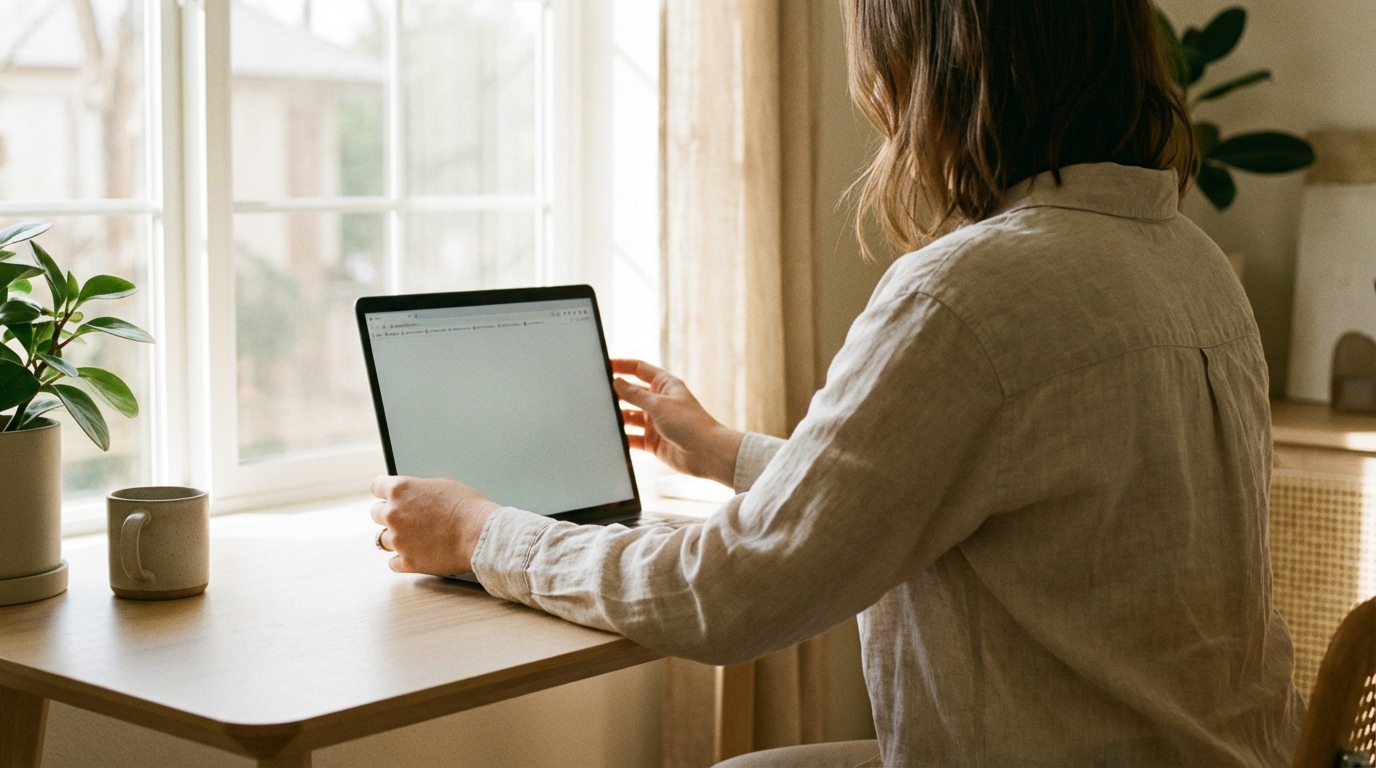
Designing focus-friendly screen environments is about shaping digital spaces that help people think clearly, stay calm, and work without constant distraction. Screens are everywhere, from laptops and phones to tablets and large monitors, and the way they are set up has a strong effect on attention, comfort, and mental energy. By adjusting visual elements like brightness, color, layout, and motion, it is possible to create screen experiences that feel supportive instead of overwhelming.
Why Screen Design Affects Focus
Human attention is limited. Every alert, color shift, animation, or crowded layout competes for the brain’s processing power. When screens are cluttered or visually aggressive, the brain has to work harder just to filter out noise. This extra effort can lead to faster fatigue, eye strain, and stress.
A focus-friendly screen environment reduces unnecessary stimulation. It guides the eyes gently, makes information easy to find, and avoids sudden changes that pull attention away from the main task. This kind of design supports longer periods of concentration and a calmer mental state.
Understanding Visual Load
Visual load refers to how much information the eyes and brain must process at once. High visual load happens when many elements compete for attention at the same time. Examples include multiple bright colors, dense text, overlapping windows, and constant pop-ups.
Lowering visual load does not mean making screens boring or empty. It means choosing which elements deserve attention and which should stay in the background. A good balance allows important content to stand out without overwhelming the user.
Signs of High Visual Load
- Difficulty finding key information quickly
- Feeling tired after short periods of screen use
- Frequent loss of focus or mental fog
- Eye strain or headaches
Brightness and Contrast for Comfort
Brightness is one of the most powerful factors in screen comfort. A screen that is too bright can feel harsh and tiring, while one that is too dim can cause squinting and strain. The goal is to match screen brightness to the surrounding environment.
In bright rooms, slightly higher screen brightness helps keep text clear. In darker spaces, lowering brightness prevents glare and reduces stress on the eyes. Many devices offer automatic brightness adjustment, which can be helpful but may need manual fine-tuning.
Using Contrast Wisely
Contrast is the difference between light and dark elements on the screen. Good contrast makes text readable without being sharp or glaring. Extremely high contrast, such as pure white text on a pure black background, can cause eye fatigue over time.
Soft contrast, like dark gray text on an off-white background, often feels calmer while remaining readable. The key is clarity without harsh edges.
Color Choices That Support Focus
Colors affect mood and attention. Bright, saturated colors can be energizing, but they can also be distracting when overused. Focus-friendly screen environments rely on a limited, thoughtful color palette.
Neutral colors like soft grays, muted blues, and warm off-whites provide a calm base. Accent colors can then be used sparingly to highlight important actions or information.
Warm vs. Cool Colors
Cool colors, such as blues and greens, are often associated with calm and stability. They work well for backgrounds and large areas of the screen. Warm colors, like reds and oranges, naturally draw attention and should be used carefully for alerts or key buttons.
Too many warm colors can raise stress levels and make it harder to focus. A calm environment usually leans toward cooler tones with limited warm accents.
Reducing Blue Light
Blue light from screens can interfere with sleep and cause eye strain, especially in the evening. Many devices now include night modes or blue light filters that shift the screen toward warmer tones after sunset.
Using these features regularly can help maintain focus during the day and support better rest at night. Adjusting color temperature is a simple change with a strong impact on comfort.
Typography and Readability
Text is a major part of most screen environments, so typography plays a key role in focus. Hard-to-read fonts, small text sizes, and tight spacing force the eyes to work harder than necessary.
Simple, clean fonts are usually the best choice for long reading or work sessions. Sans-serif fonts are often easier to read on screens, especially at smaller sizes.
Font Size and Line Spacing
Text that is too small encourages leaning forward and squinting, while overly large text can break the flow of reading. A comfortable font size allows the eyes to move smoothly across lines without strain.
Line spacing also matters. Slightly increased spacing between lines gives the eyes room to move and reduces the chance of losing one’s place while reading.
Limiting Font Variety
Using too many fonts creates visual noise. Each font has its own personality, and mixing many styles can feel chaotic. Limiting a screen environment to one or two complementary fonts helps maintain a clean, focused look.
Layout and Visual Hierarchy
Layout determines how information is arranged on the screen. A clear layout guides the eye naturally from one element to the next. Visual hierarchy uses size, spacing, and placement to show what is most important.
When hierarchy is clear, users do not have to think about where to look. Their attention flows naturally, supporting focus and reducing mental effort.
Using White Space
White space, also called negative space, is the empty area between elements. It is not wasted space. White space helps separate content, making it easier to understand and less overwhelming.
Generous spacing around text, images, and buttons gives each element room to breathe. This calm structure supports longer attention spans.
Consistent Alignment
Alignment creates order. When elements line up consistently, the screen feels stable and predictable. Inconsistent alignment can feel messy and distracting, even if the user cannot explain why.
Using grids and consistent margins helps create a sense of balance that supports focus.
Managing Motion and Animation
Motion naturally draws the eye. Animations can be helpful for guiding attention or showing changes, but too much motion can quickly become distracting.
Focus-friendly environments use motion with purpose. Animations should be smooth, subtle, and brief. Constant movement, flashing elements, or looping animations can pull attention away from the main task.
Reducing Unnecessary Animations
If an animation does not provide useful feedback or information, it may be better to remove it. Simple fades or gentle transitions often feel calmer than bouncy or fast-moving effects.
Many operating systems allow users to reduce motion system-wide. Enabling this option can significantly improve comfort for sensitive users.
Notifications and Interruptions
Notifications are one of the biggest threats to focus. Each alert interrupts thought and can take time to recover from. Designing a focus-friendly screen environment means controlling when and how notifications appear.
Not all notifications are equal. Some are urgent, while others can wait. Grouping notifications or delivering them at chosen times reduces constant interruptions.
Visual Design of Alerts
Alerts should be noticeable without being aggressive. Soft colors, clear icons, and concise text help users understand the message quickly.
Large pop-ups or bright flashing alerts should be reserved for truly important events. Overuse leads to alert fatigue and reduced focus.
Dark Mode and Light Mode
Many devices offer both dark and light modes. Each has benefits, and the best choice often depends on the environment and personal preference.
Light mode, with dark text on a light background, often feels more natural during the day and in bright spaces. Dark mode, with light text on a dark background, can reduce glare in low-light settings.
Choosing the Right Mode
Switching modes based on time of day can support comfort and focus. Some systems allow automatic switching, which helps maintain visual balance without manual changes.
Regardless of mode, maintaining proper contrast and avoiding pure black or pure white extremes can improve readability.
Physical Screen Setup and Environment
Screen design does not exist in isolation. The physical setup of the screen and the surrounding environment also affect focus.
Screen height, distance, and angle all influence comfort. A screen placed too high or too low can cause neck strain, while a screen too close can increase eye fatigue.
Reducing Glare
Glare from windows or overhead lights can make screens harder to see. Positioning screens away from direct light sources and using matte screen finishes can reduce reflections.
Adjusting contrast and brightness to account for ambient light also helps maintain clarity.
Minimalism and Intentional Design
Minimalism in screen design focuses on removing what is not needed. This does not mean stripping away useful features, but rather being intentional about every element on the screen.
Each icon, button, and menu should have a clear purpose. When users know exactly where to find what they need, they spend less time searching and more time focusing.
Decluttering Digital Workspaces
Desktop icons, open tabs, and background apps all contribute to mental clutter. Regularly cleaning up digital spaces can create a sense of control and calm.
Using folders, closing unused windows, and limiting the number of active apps supports a cleaner visual environment.
Consistency Across Devices
Many people switch between multiple devices throughout the day. Consistent design across screens reduces the mental effort needed to adjust each time.
Using similar color schemes, font sizes, and layouts across devices creates familiarity. This familiarity supports focus by reducing the need to relearn visual patterns.
Syncing Settings
Some systems allow syncing of display settings like dark mode, text size, and color temperature. Keeping these settings consistent helps maintain comfort and focus across devices.
Accessibility and Focus
Accessibility features often improve focus for everyone, not just users with specific needs. Clear text, strong contrast, and simple navigation benefit a wide range of users.
Designing with accessibility in mind leads to calmer, more usable screen environments.
Customizable Settings
Allowing users to adjust font size, contrast, and color schemes empowers them to create their own focus-friendly environment.
What feels calm and clear to one person may feel uncomfortable to another. Flexibility is key.
Emotional Impact of Screen Design
Screens do not just deliver information; they also create emotional responses. Chaotic designs can raise stress levels, while calm designs can promote a sense of ease.
Soft colors, gentle transitions, and clear organization contribute to a feeling of safety and control. This emotional comfort supports sustained focus.
Designing for Calm
- Use muted color palettes
- Limit visual noise
- Provide clear paths for navigation
- Avoid sudden changes in layout
Focus-Friendly Habits and Screen Design
Even the best-designed screen cannot guarantee focus without supportive habits. Screen design works best when combined with mindful use.
Taking regular breaks, adjusting posture, and stepping away from screens when possible all support attention and well-being.
Using Focus Modes
Many devices include focus or do-not-disturb modes that limit notifications during set times. Using these modes helps protect attention during deep work.
Combining focus modes with a calm screen design creates an environment that truly supports concentration.
Evolving Screen Environments
Screen technology continues to evolve, bringing new display types, higher resolutions, and more customization options. These advances create new opportunities to design for focus.
Understanding how visual elements affect attention allows designers and users alike to make better choices. By adjusting displays for clarity and calm, screens can become tools that support thinking instead of competing with it.